
The selection rectangle lets you select uniform portions of the background in order to perform basic functions (e.g., cutting and pasting, moving). Additionally, you can use the selection rectangle to perform controlled functions (e.g., erasing, drawing) without changing any area outside of the selection.
[Menu Proxy — Headings — Online — Depth3 ]
Example
Example
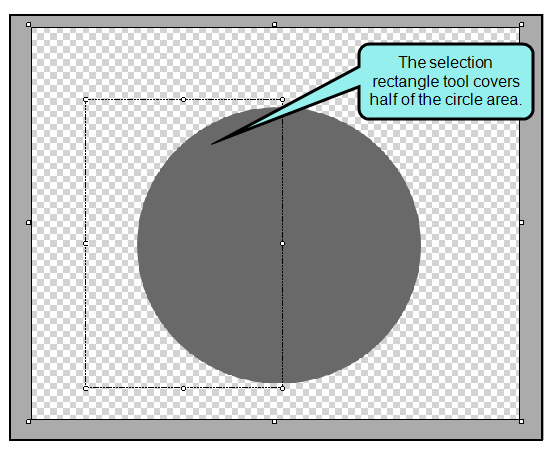
Your image is a large circle, but you'd like a half-circle instead. First, use the selection rectangle to section off the area of the circle you want to remove.
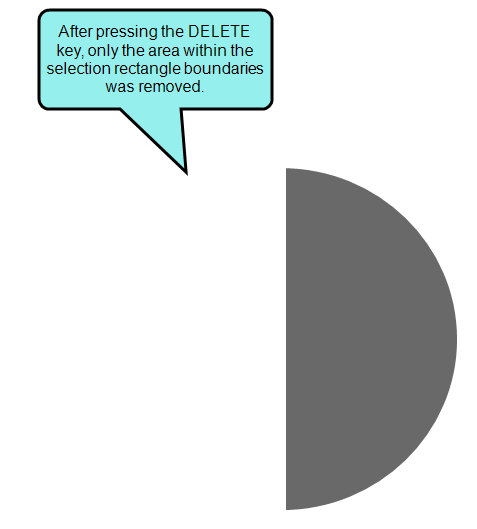
Now, press the DELETE key to remove it from the image.
How to Use the Selection Rectangle
- Open the image you want to modify.
- From the Edit ribbon, click
 .
. - Click on the part of the canvas you want to select, and drag the mouse until the rectangle covers the desired section of the canvas. Release the mouse button when you are finished.
-
You can copy, cut, delete, move, or resize part of the image.
To Copy Part of the Image
After selecting a part of the image, you can copy it for reuse in the same image, or in a different image file.
- Press CTRL+C to copy the area within the selection rectangle.
-
(Optional) Press CTRL+P to paste the area onto the canvas as an image object.
To Cut Part of the Image
After selecting a part of the image, you can cut it to remove it from one part of the image. This lets you keep it available on your clipboard in order to paste it to another part of the image, or to add it to a new image file.
- Press CTRL+X to cut the selected area out of the image.
- (Optional) Press CTRL+P to paste the area back onto the image as an image object.
To Delete Part of the Image
You can delete a part of the background image from the canvas. The deleted area is replaced with a transparent background. The canvas will remain the same size.
- Make sure the selection rectangle covers the desired area. Only this area will be removed.
- Press the DELETE key.
To Move Part of the Image
If you move a selected area, it will flatten the selection onto the background image.
- Make sure the selection rectangle covers the desired area.
- Move the mouse over the selected area until the cursor changes into the move symbol, then click and drag the section to its new location.
-
Release the mouse button when finished.
Note Once you click off of the selection rectangle area, the selected area becomes part of the background image.
To Resize Part of the Image
After selecting part of the image, you can use the white handles around the selected area to resize the selection.
- Make sure the selection rectangle covers the desired area.
- Click on a white handle and stretch the selection as needed.
-
Release the mouse button when finished.
Note Once you click off of the selection rectangle area, the selected area becomes part of the background image.