Folders
The more files you have in your project—whether they are in the Content Explorer or Project Organizer—the more necessary it will be for you to create folders and subfolders to organize them.
[Menu Proxy — Headings — Online — Depth3 ]
Categories
Create intuitive categories for your folders based on the nature of your product. For example, maybe you are writing documentation for several company products, in which case you might choose to create the first level of folders based on those product names. Or maybe you decide it’s best to create folder names according to features. Then again, there might be something else that dictates how you name folders, such as modules that your company uses for organization.
Conditions
Not only can you place conditions on content within topics, snippets, and template pages, but you can also set conditions on folders or files. If all of the files within a folder need to have the same condition on them, it is a good idea to place the condition on the folder instead. This can save a lot of time because whatever conditions you apply to a folder will be set automatically on the files within it. For example, if you have a folder that contains 500 files, you can put a condition on just that one folder instead of each of the 500 files within it.
Order
Whatever you name your folders and subfolders, they will be listed in the Content Explorer and Project Organizer alphabetically. If you want them to be listed in a particular order, you can begin folder names with certain numbers or characters to force the order that you want.
Resources
In the Content Explorer, we recommend that you use the Resources folder (and the subfolders under it) to hold files such as images, template pages, stylesheets, and more. Although it is possible to store such ancillary files anywhere else in the Content Explorer, using the Resources folder and its subfolders helps keep them files well organized.
What the MadCap Documentation Team Does
We do the following with our folders.
Categories
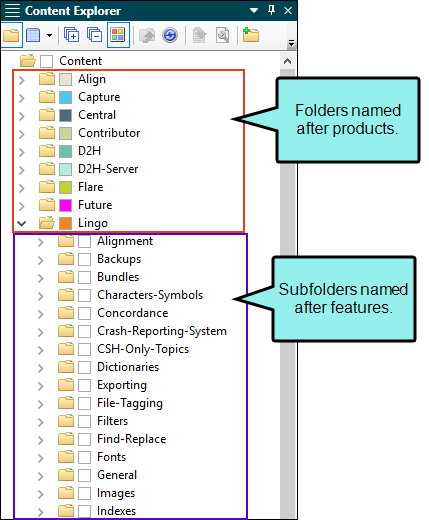
At one time, we organized all of our first-level folders according to the names of features in MadCap’s products. But over time, we found that it was easier for us to organize by product, so most of the first-level folders have the name of a product. Within those product folders, we created more subfolders, usually named after features.
Conditions
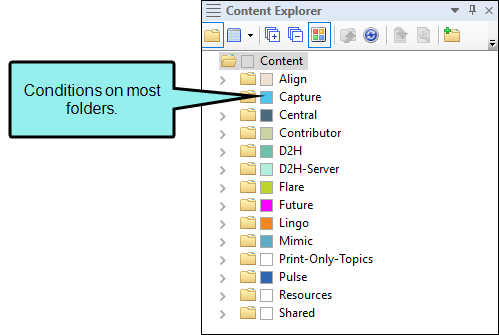
We place conditions on all of the folders that are named after a product. Also, our products are associated with certain branding colors, so we use the same colors when creating those conditions.
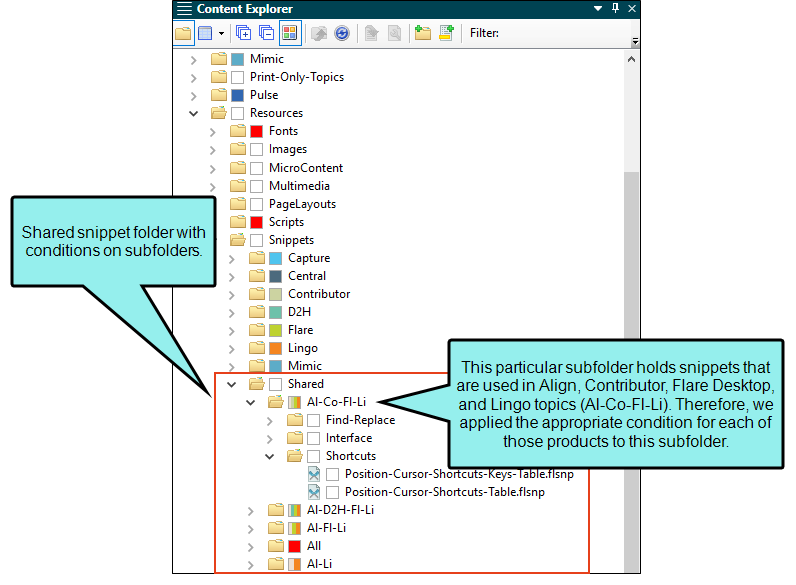
We have some files that are used in more than one product. This includes files such as snippets and images. For those files, we have created special folders named “Shared,” and we set conditions on the subfolders holding those files.
It is important that you try to make organizational decisions such as these early in your project’s life. Doing so will help prevent the need to spend a lot of time changing folders and files later.

