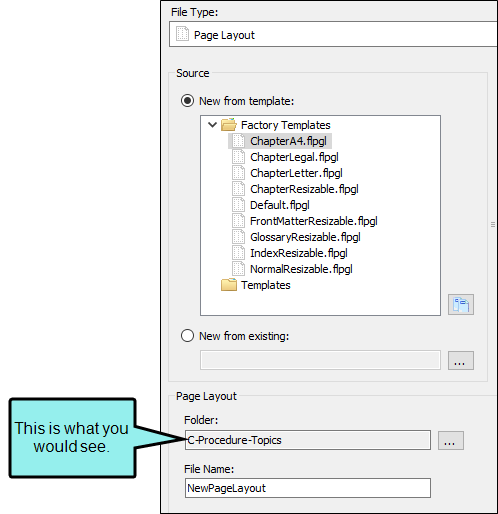
If you are adding a content file (e.g., topic, image, template page, multimedia, page layout, snippet, stylesheet, table stylesheet), the Folder field is automatically populated based on whatever has focus in the Content Explorer. Flare Desktop does not try to direct you to a particular folder (such as the recommended default folders for non-topic files). Instead, it assumes that you want to place the file in the folder that has focus in the Content Explorer, with the option to place it anywhere else if you like.
Recommended Folders for Non-Topic File Types
|
Non-Topic File Type |
Recommended Default Folder in Content Explorer |
|---|---|
|
Branding |
Resources > Branding |
|
Image |
Resources > Images |
|
Micro Content |
Resources > MicroContent |
|
Multimedia |
Resources > Multimedia |
|
Page Layout |
Resources > PageLayouts |
|
Snippet |
Resources > Snippets |
|
Stylesheet |
Resources > Stylesheets |
|
Table Stylesheet |
Resources > TableStyles |
|
Template Page |
Resources > TemplatePages |
Note If you want to place non-topic files in a recommended folder, first make sure that folder exists in the Content Explorer. If it does not exist, you can easily add it.
Tip When adding a new file to the Content Explorer, the recommended method is to right-click on the folder in the Content Explorer and use the New menu option. This is the most efficient way to direct the new file to the folder where you want to store it.
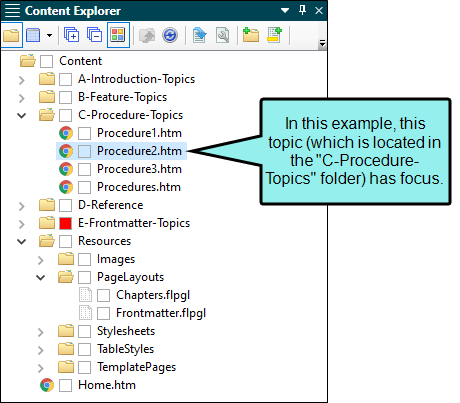
Example The last place you clicked in the Content Explorer was a random topic in a custom folder called "C-Procedure-Topics" that you created.
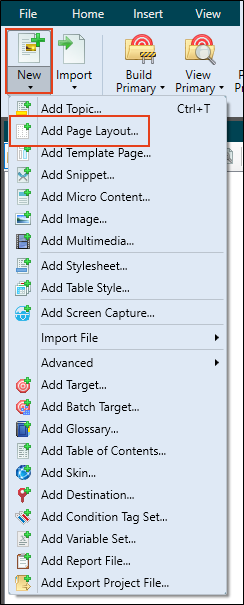
You then select the Project ribbon, click New, and select Page Layout.
The Add File dialog populates the Folder field with "C-Procedure-Topics," because that is the folder that had focus when you opened the Add File dialog.