If you are using variables in snippets, you can set snippet-level definitions for the variable. Snippet-level definitions override project- or target-level variable definitions. This lets you customize the content in each of your snippets. This is beneficial because you do not need to create multiple versions of the same content if you need to use different variable definitions depending on where the snippet is used.
You can perform the following actions from this dialog:
- Set Snippet Variable Definitions Set the definitions you want to use for variables in the selected snippet. See Overriding Variable Definitions in Files.
- Edit Variables Open the Variable Set Editor, where you can create new variables or edit existing variables. See Editing Variables.
Example — Different Types of Variable Definitions
Use the examples below to help you determine which type of variable definition you should use.
-
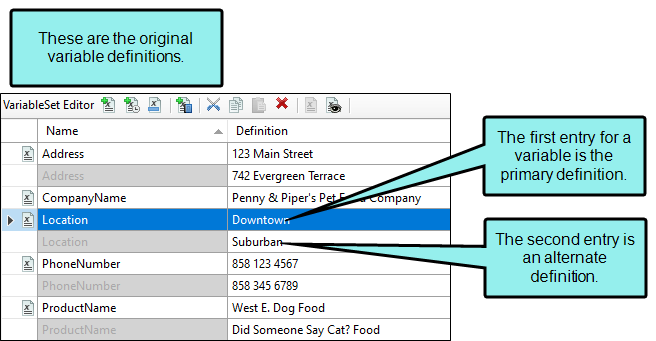
Original Variable Definitions Used in most cases. These are the variable definitions you enter in the Variable Set Editor. You can enter primary and alternate variable definitions.
-
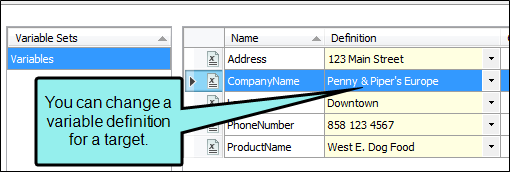
Target-Level Variable Definitions Used when generating output for specific targets. Overrides the project-level variable definition, but only for the defined target. For example, if you use a company name variable in your documents, you may want to change it to say "ABC Corporation" in one document and "XYZ Company" in another.
-
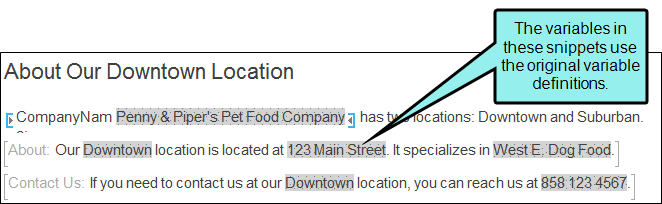
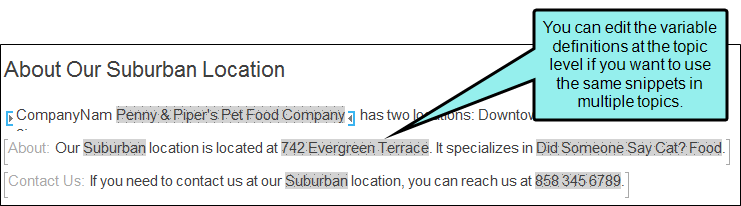
Topic-Level Variable Definitions Used to change a variable definition in a single topic. Applies only to variables in snippets, and overrides project-level and target-level variable definitions. For example, if you use a phone number variable throughout your project, but a handful of topics are about a different location (and therefore use a different phone number), you can set a different variable definition that applies only to those topics.
-
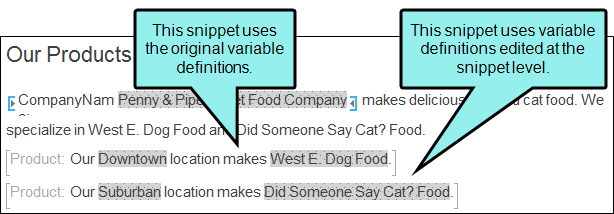
Snippet-Level Variable Definitions Used to change a variable definition in a single snippet. Applies only to variables in snippets, and overrides project- and target-level variable definitions, as well as topic-level snippet variable definitions. For example, if you use a product name variable throughout your project but a few snippets refer to a different product, you can set a different variable definition that applies only to those snippets.
|
Option |
Description |
|---|---|
|
Variable Sets |
If you want to see variables from a different variable set, select the variable set to display it on the right side of the grid. |
|
Names |
The name of the variable. Select the variable you want to include in your content. |
|
Definitions |
The content that will appear when you generate your output with the variable. If multiple definitions are available, you will see a drop-down menu in this field. You can select a different definition from the menu. If you want to enter a new variable definition, double-click in the field (or press F2) and enter the definition in the field. |
|
Comment |
Additional information about the variable. Double-click in the field (or press F2) to enter a new comment. |
|
Edit Set |
Click this button if you want to edit the selected variable set. This opens the Variable Set Editor. |
|
Restore Defaults |
Return all of the variable definitions in a variable set to their default values. |
Note If you want to override snippet variables at the topic level, you can do so from the Topic Properties dialog. See Properties Dialog (Topics).
