Flare Desktop provides several features that can be used to manage your project and enhance team authoring.
[Menu Proxy — Headings — Online — Depth3 ]
Analysis and Reports
Tools are available that let you perform analysis and reporting on both source files and output.
Analysis on Source Files
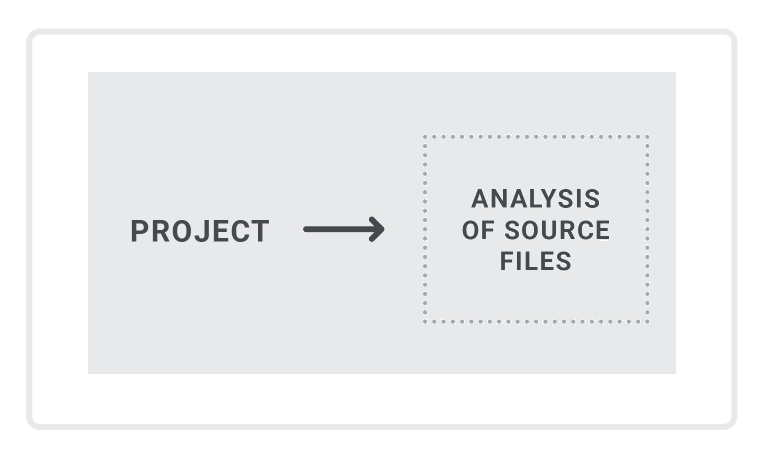
No setup is needed for analysis of source files. You simply run scans on your project.
-
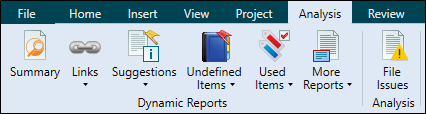
Analysis Ribbon From the Analysis ribbon in Flare Desktop, you can scan files and run reports to discover a wide variety of information. This includes broken links or bookmarks, files with changes, topics not in a table of contents (TOC), used meta tags, and more.
-
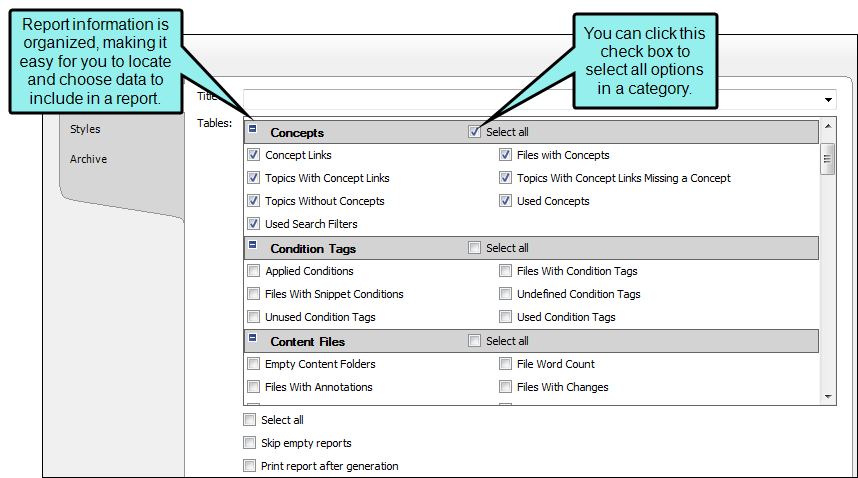
Reports From the Reports folder in the Project Organizer, you can generate custom reports based on information contained in your project. In addition, you can design the look and feel of reports, save them for future access, and open them in a browser window (where you can print them).
-
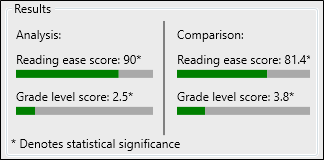
Text Analysis From the Tools ribbon in Flare Desktop, you can run text analysis on content files for readability, average sentence length, and more.
Analysis on Output Files
If you have a MadCap Flare Online license, you can view analytics on published HTML5 output. This includes search phrases used, search phrases with no results, topics viewed, context-sensitive Help calls, and demographic statistics (browsers and operating systems).
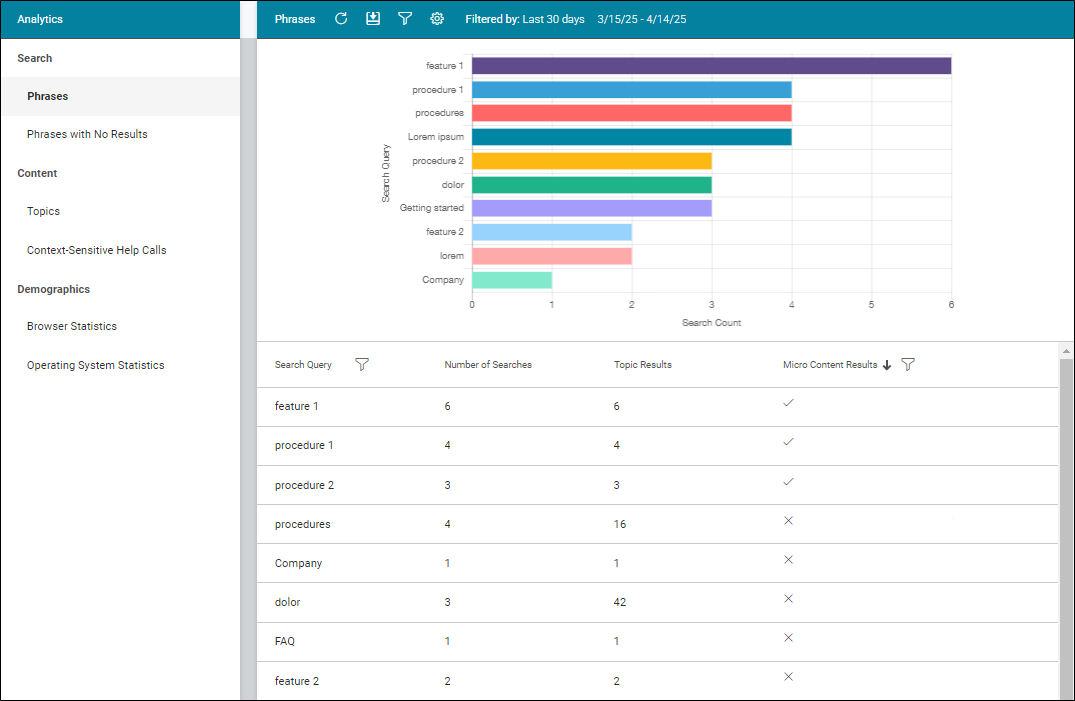
The process is quite simple. You create an analytics key in a couple of steps, associating it with a target. Then after building and publishing your output, you use the Analytics page in Flare Online to view user activity on the output as it occurs.
Analytics works on projects located in Flare Online, or you can host output on your own servers. If you host the output outside of Flare Online, you still need to use Flare Online with a key to view the analytics data. Also, the server where the output is hosted must be able to communicate with Flare Online (e.g., not be behind a firewall).
Global Project Linking
By using Global Project Linking, you can import content and project files contained in another Flare project, thus allowing you to maintain the information in one location but reuse it in any other project. With this feature, you can include or exclude particular types of files (e.g., topics, snippets, stylesheets, glossaries, targets), specific individual files, or files that have certain condition tags applied. Simply use the include/exclude methods that work best for you.
This is different than a simple import process, because in this case, the imported files remain linked to the source project. This lets you make future updates to those files in just one place—in the parent project. When you perform ongoing imports using your previous settings, Flare Desktop recognizes changes to the source files. Therefore, the new files can be brought over, replacing the outdated ones.
See Global Project Linking and Global Project Linking—Importing Files From Other Projects.
MadCap Flare Online Integration
MadCap Flare Online is a cloud-based platform that lets you plan, track, and manage the processes, content, and teams that are at the heart of your organization.
Over time, Flare Online has grown so much in terms of authoring features (including collaborative authoring) that it really has morphed into a cloud-based version of Flare. A Flare author could start a project, work only in the cloud (without ever needing or touching Flare Desktop), and end up with state-of-the art online and print-based outputs.
MadCap Flare Online's integration with MadCap Flare Desktop lets you store copies of your projects in Flare Online, continue to work on them locally in Flare Desktop, and keep both sets of copies in sync. You can use Flare Online to quickly build and publish output (and roll back when necessary) without the need to involve an IT department. Custom vanity URLs let you produce meaningful paths for your outputs. You can also send topics and snippets for review in Flare Online, as well as use custom checklists to track your progress in Flare projects.
The Flare Online window pane in Flare Desktop lets you upload (bind) and import projects, as well as push project changes to Flare Online. Additionally, you can see project properties, log in and out of your Flare Online account, and launch the Flare Online portal in your browser.
Not only can you build and publish output on MadCap Flare Online, but you also have the option of publishing output directly to Flare Online from your local Flare Desktop project. By “publish,” we mean copying your output files to Flare Online, not making that output “live,” which would make it visible to the general public. You would still need to use Flare Online to make that output live.
Another benefit of Flare Online is that you can produce private output that requires a user to log in with an email and Flare Online password. Without credentials, people cannot see the output. It is possible to set private output for all output types supported by Flare Online.
See MadCap Flare Online and Flare Desktop.
Note For more complete information about the benefits of Flare Online, see its Help system:
https://documentation.madcapsoftware.comNote MadCap Flare Online is sold separately from Flare Desktop. Please contact MadCap Software Sales for more information.
Meta Tags
A meta tag is a type of metadata that you can use in MadCap Flare files to make it easier to find, identify, and control information, whether it is in the source files or the output.
-
Search engine optimization (SEO) The process of improving search results (quality and quantity) for web pages by search engines.
-
Content management The use of processes and systems to help gather, handle, and distribute information.
-
Micro content integration The generation of short, concise information that stands alone and is easily consumable. Meta tags can help display micro content in search results, and they are also helpful in controlling where micro content is shown in regular topic output.
See Meta Tags.
Reviews and Contributions
There are a couple of processes that you can use for Flare topic reviews and collaboration.
- Flare Online Reviews (Recommended) Flare Desktop supports review packages (i.e., bundling files such as topics and snippets) and lets you send those packages to Flare Online to be reviewed by others. After editing and annotating the files in Flare Online's Review Editor, the reviewers submit the finished files, sending them back to your inbox in Flare Desktop. You can then accept or reject their changes and accept the file, replacing the original source file.
- Contributor Reviews The review process lets you send Flare files for review and receive file contributions from SMEs and other Flare authors. Non-Flare Desktop users can download a separate application called MadCap Contributor when collaborating with you and your Flare project. You can also use the same features to send files for review to other Flare Desktop authors using Flare Desktop only.
Note If you do not choose to use either of these systems, you can always generate output—such as PDF or Word—and send those files to your reviewers. However, although this can be an easy method, it is also more manual and means that you need to copy and paste the changes into your source Flare files.
SharePoint and External Resources
Flare Desktop supports integration with Microsoft SharePoint, including SharePoint Online (or SharePoint 365). From Flare Desktop you can access, edit, and synchronize SharePoint files.
One of the ways Flare Desktop supports team collaboration is that you can create mappings to external resources. The External Resources window pane lets you select and maintain groups of external files that you want to share among Flare projects. The paths of these files are written to the registry so they will be available for all your Flare projects.
Source Control
Because all content and project-level files are stored as separate XML files, projects are compatible with all source control systems. All files in a project are independent of one another, which means that there are no file dependencies that hinder multiple authors from accessing project files. Flare Desktop also provides built-in support for Microsoft Team Foundation Server, Perforce Helix Core, Git, and Apache Subversion. Also, if you integrate MadCap Flare Online with your project, you can use Flare Online as a source control solution, with Git working behind the scenes.
Templates
A template is an existing project or file that serves as the basis for a new one, providing preset content, settings, or formatting.
Translation and Localization
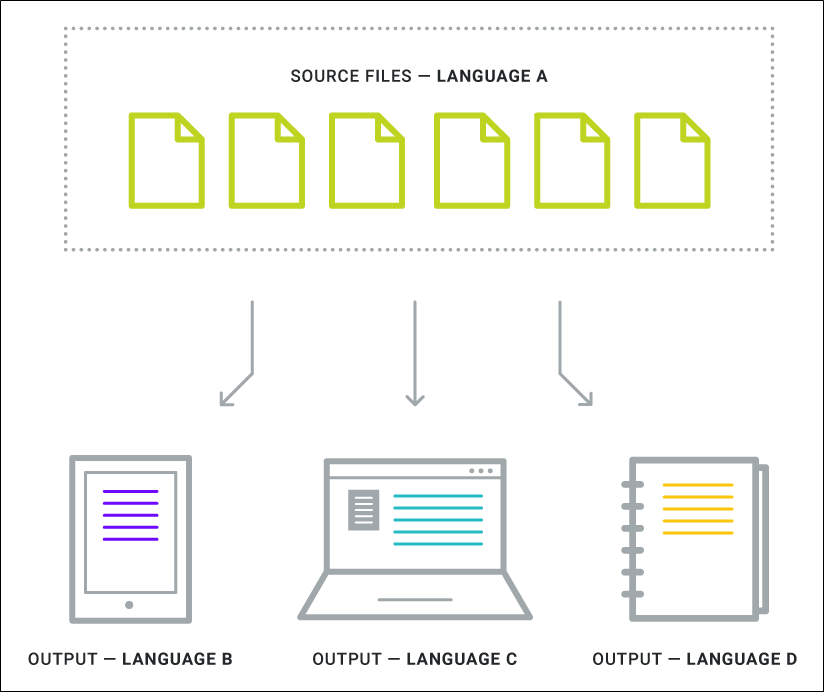
Translation and localization services provide the ability for us to communicate and understand each other around the world better. Translation changes the language of your content, while localization adapts content for a specific region. MadCap products (e.g., Flare Desktop, Lingo, Capture, etc.) are designed to streamline the translation process so you can easily provide multilingual documentation to your global users.
The easiest approach to getting material translated into another language is engaging MadTranslations, MadCap's full-service translation and localization division. You send your Flare project to MadTranslations, and at the end of the process you get a translated Flare project back.
We recommend using MadCap Lingo as part of the translation process, whether it is used to do the actual translation or as a way to bundle and send Flare files to a translator who works with a third-party tool.
See Translation and Localization.