 Outputs Supported


Alternate "alt" text provides a textual option for non-text elements on a web page, which is required as part of Section 508 compliance. See Section 508 and WCAG.
In Flare Desktop, you can apply alt text to many elements, including concept links, drop-down text, expanding text, images, related topics, and more.
[Menu Proxy — Headings — Online — Depth3 ]
How to Apply Alt Text Through the Language Skin
- Add a language skin, or open one if it is already created on your project.
- In the upper-right corner of the skin under Language Skin Targets, select Print and Online.
- Under the Print and Online category in your skin, scroll down to the section with the Formats. You may need to sort the Name column to list the Formats together.
-
In the Value column, type the text of the property you wish to modify.
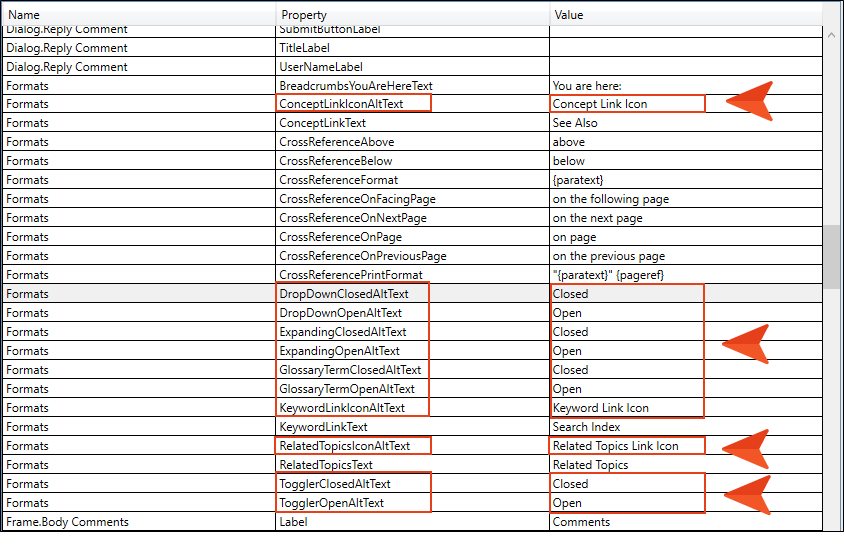
-
Click
 to save your work.
How to Apply Alt Text Through the Stylesheet
- Open your stylesheet.
- In the local toolbar, make sure the first button displays
 . If the button displays
  instead, then click it.
 -
In the upper-left of the editor, make sure the drop-down field is set to
 .
. -
Scroll down to the section with the MadCap styles. You can modify the alt text for the following:
- MadCap|conceptLink
- MadCap|dropDown
- MadCap|expanding
- MadCap|glossaryTerm
- MadCap|keywordLink
- MadCap|relatedTopics
- MadCap|toggler
-
From the Show drop-down list on the upper-right side of the editor, select
 . The most relevant properties for that style are shown on the right side of the editor.
 - (Optional) You can use the toggle button in the local toolbar to show properties below in a group view
 or an alphabetical view
  .
. - If you are using the group view, expand the Unclassified group.
-
Enter the alt text for each property. You can modify the following properties:
-
mc-closed-image-alt-text
This enables alt text when the drop-down icon is closed. This property applies to the following:
- MadCap|dropDown
- MadCap|expanding
- MadCap|glossaryTerm
- MadCap|toggler
-
mc-open-image-alt-text
This enables alt text when the drop-down icon is open. This property applies to the following:
- MadCap|dropDown
- MadCap|expanding
- MadCap|glossaryTerm
- MadCap|toggler
-
mc-image-alt-text
This enables alt text on link icons. This property applies to the following:
- MadCap|conceptLink
- MadCap|keywordLink
- MadCap|relatedTopics
Example You want to modify the alt text for the drop-downs in your project. So you modify the alt text when the drop-down is open, and when it is closed.
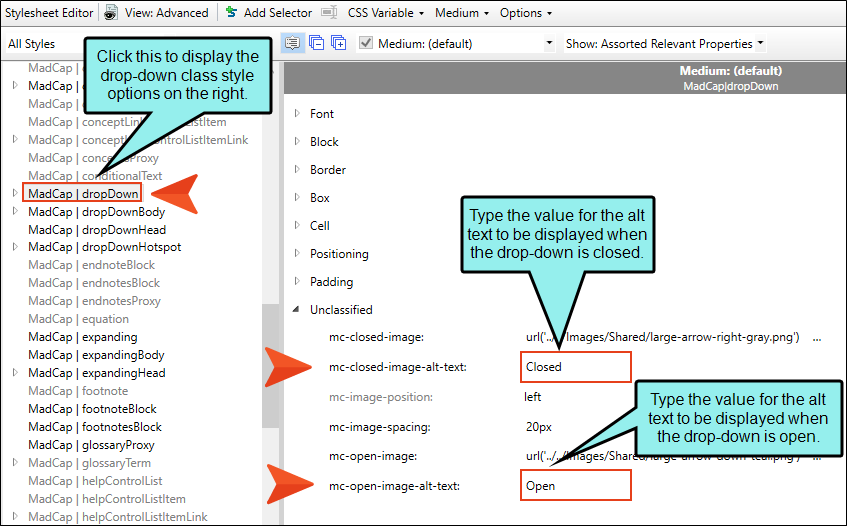
-
-
Click
to save your work.
Applying Alt Text and Screen Tips to All Image References
When you insert or edit an image, you can apply alternate text or screen tips to one image at a time, or to every instance of the image throughout the project. In Image Properties, you will see a check box that lets you apply the same alternate text and screen tip to all image references.
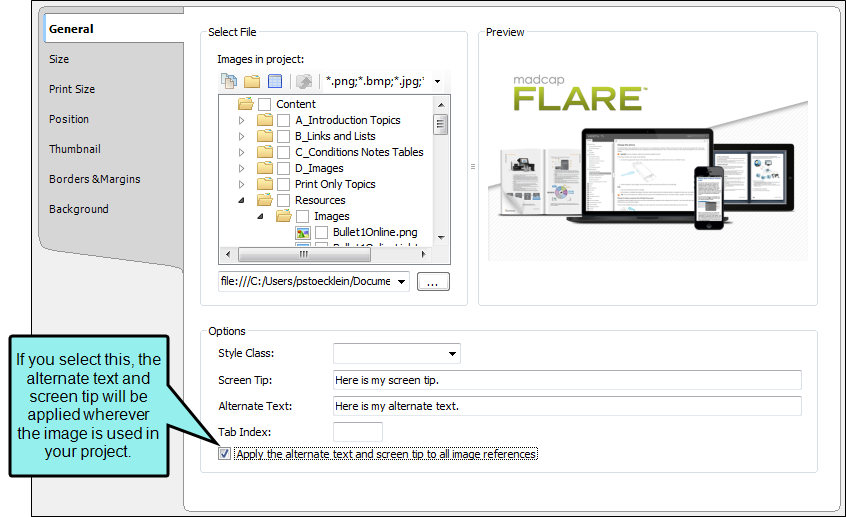
Applying Alt Text and Screen Tips to Links
When you insert or edit a link (e.g., cross-reference, or hyperlink), you can apply alternate text or screen tips. If you open the link dialog, enter text in the appropriate field to alter its properties. See Accessibility and PDF Output.
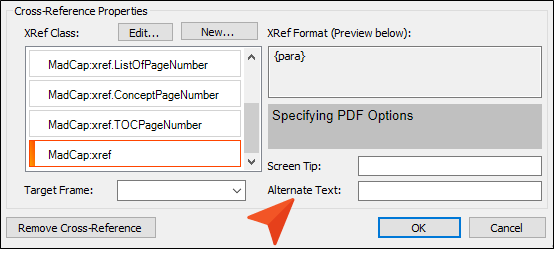
What’s Noteworthy?
Note If there are alt text settings for any elements in both the stylesheet and the language skin, the stylesheet settings take precedence.
