Converting Text to Tables
If you have a series of paragraphs or some text separated by commas or other strings, you can quickly place all of it into a table.
How to Convert Text to a Table
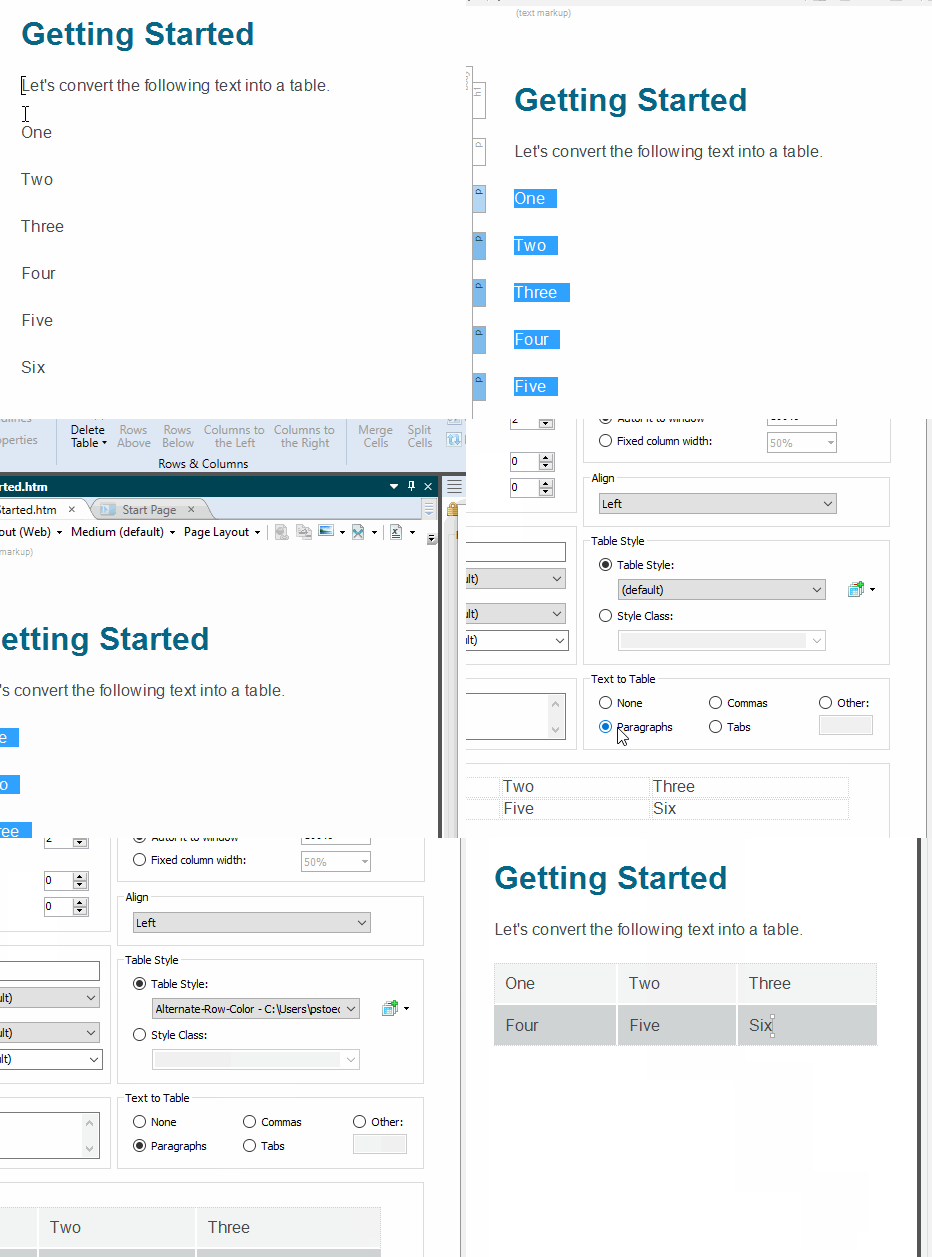
- Select the text to be converted, so that it is highlighted.
- Select Table > Insert Table (face of the button).
-
In the Text to Table section, select one of the options.
- None Creates a table but does not include any of the selected text (i.e., text is removed and replaced with new table).
- Paragraphs Converts multiple paragraphs to a table (each paragraph placed in a separate table cell).
- Commas Converts text separated by commas to a table (each segment of text between a comma placed in a separate table cell).
- Tabs Converts text separated by tabs to a table (each segment of text between a tab separator placed in a separate table cell).
- Other Converts text separated by a specific text string (e.g., semicolons) to a table. After selecting this option, enter that text string in the field to the right. Each segment of text between the text string that you specify will be placed in a separate table cell.
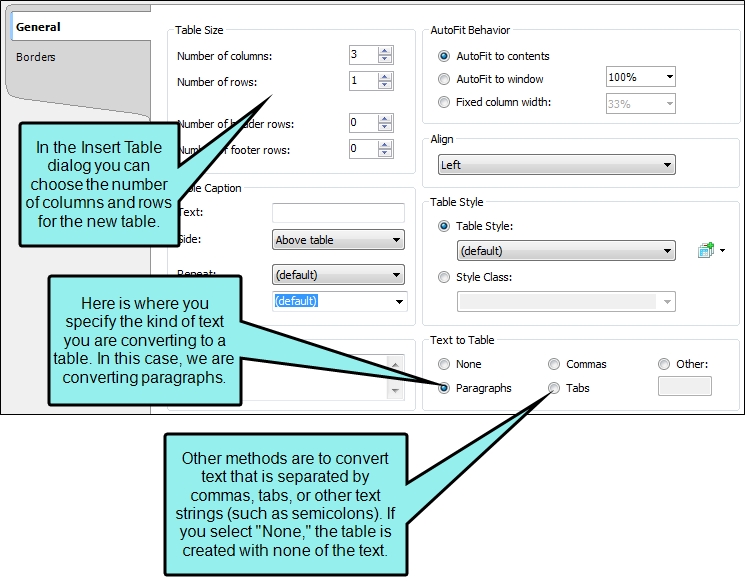
You can also complete any of the other fields in the dialog as necessary. For more information about the other settings, see Inserting Tables.
-
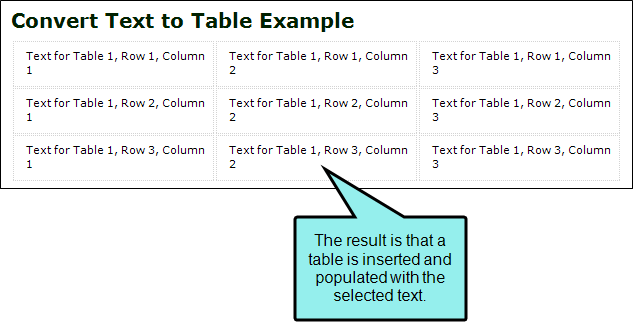
Click OK. The text is converted to a table.
- Click
 to save your work.
If the animation below is cut off, you can see the complete animation by clicking the link under it to open the full topic.