 GETTING STARTED TUTORIAL
Now that we have created the thumbnail style, we can apply it to an image.
How to Apply a Style
- In the Content Explorer, double-click Attractions.htm. The topic opens in the XML Editor.
-
Select the Home ribbon, and click Style Window. The Styles window pane opens on the right side of the Flare Desktop interface.
The Styles window pane displays formatting options for the text that is currently selected. For example, if you have clicked in a paragraph, you will see several styles for formatting text, such as heading styles and any children of the parent p style.
-
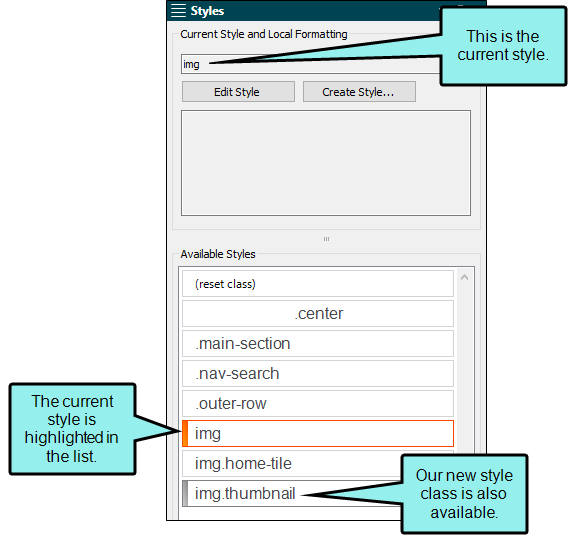
In the XML Editor, select the image of the fountain so that it is highlighted. In the Available Styles section of the Styles window pane, the style that is currently applied to the image of the fountain (i.e., the img style) is shown at the top and highlighted in the list below.
-
In the Styles window pane, click img.thumbnail. In the XML Editor, the image of the fountain shrinks to the dimensions for the thumbnail (as specified in the stylesheet).
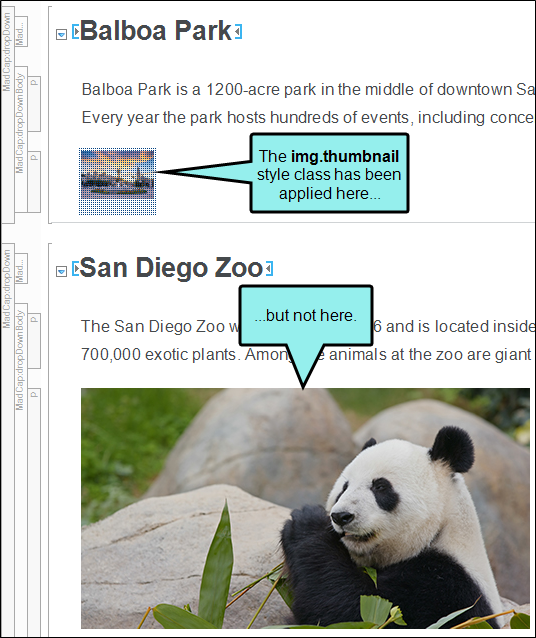
- Apply the img.thumbnail style to the image of the panda and the image of Petco Park.
-
Click
 to save your work.
Note If you want, you can apply the img.thumbnail style to other images in the San Diego project.

