 LISTS TUTORIAL
In addition to using the quick list drop-down menu, you can use autonumbering to create more advanced types of lists. You might want to use autonumbering on lists, for example, if you want the list items to contain text in addition to numbers (e.g., Step 1, Step 2, Step 3). A list using autonumbers also supports cross-references to specific list items.
[Menu Proxy — Headings — Online — Depth3 ]
How to Add Autonumber List Styles
There are many ways to accomplish most things with styles. The following styles and settings are just one way to do it for a simple, single-level list. If you want to create multiple levels or add comments between steps, more styling is necessary.
Also, with the following we are associating autonumbers with an ol style class, but you can accomplish something similar by using autonumbers with paragraph style classes.
-
Copy the following.
Copyol.StepNumber > li
{
list-style-type: none;
mc-auto-number-format: 'S:Step {n+}: ';
mc-auto-number-class: StepNumber;
margin-left: -35px;
padding-left: 59px;
text-indent: -59px;
}
ol.StepNumber > li:first-child
{
mc-auto-number-format: 'S:Step {n=1}: ';
}
span.StepNumber
{
font-weight: bold;
}
MadCap|xref.StepNumber
{
mc-format: '{paranumonly}';
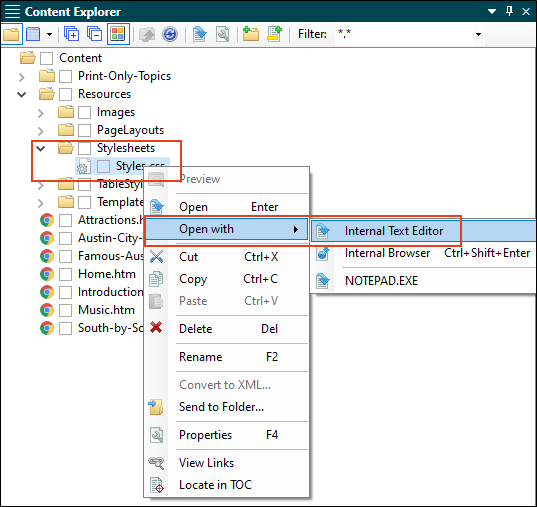
} - From the Content Explorer, expand Resources > Stylesheets.
-
Right-click Styles.css, and from the context menu select Open with > Internal Text Editor.
-
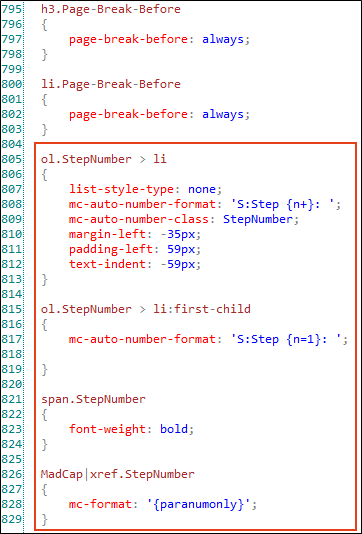
Scroll to the bottom of the editor and paste the styles.
- Click
 to save your work.
How to Apply Autonumber List Styles
- Open the Attractions.htm topic.
-
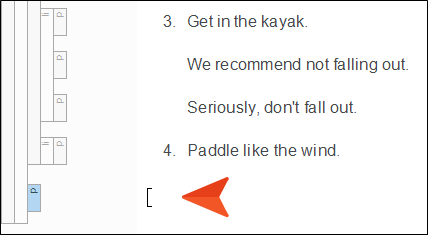
Scroll down to the bottom of the topic, click at the end of the final list item, and press ENTER twice to create a new empty paragraph after the list.
-
Copy and paste the following at that location.
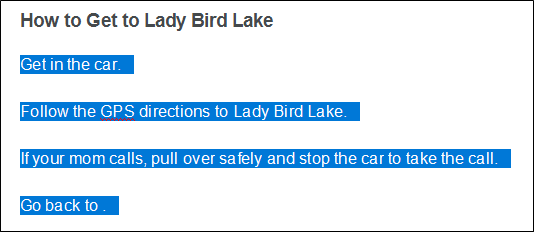
How to Get to Lady Bird Lake
Get in the car.
Follow the GPS directions to Lady Bird Lake.
If your mom calls, pull over safely and stop the car to take the call.
Go back to .
-
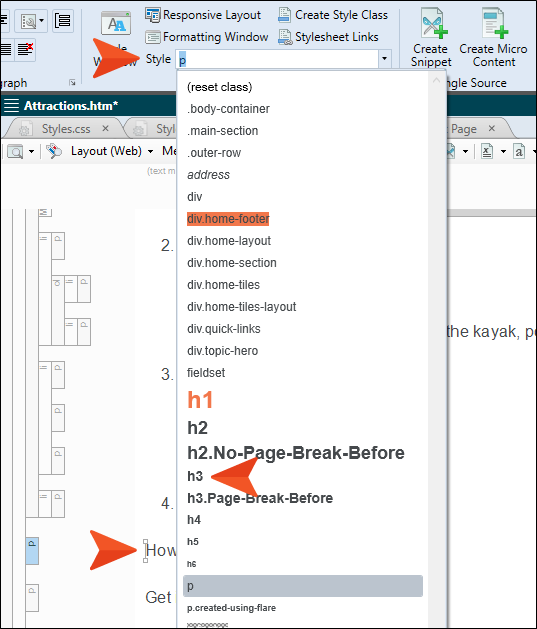
Place your cursor anywhere in the first paragraph ("How to Get to Lady Bird Lake"), and from the Home ribbon, click in the Style drop-down and select h3.
-
Select the rest of the text under the new heading.
-
From the Home ribbon, click the down arrow next to the List button
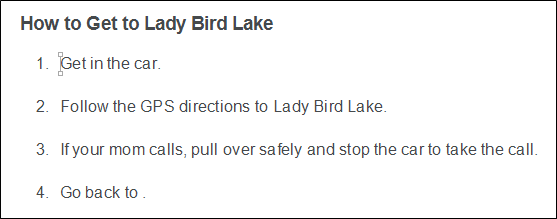
 and select Numbered List.
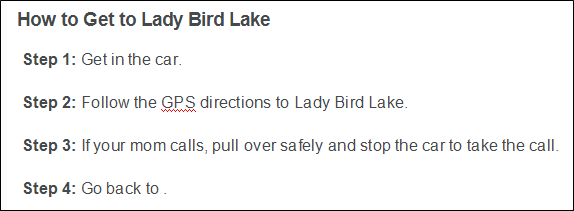
You now have a simple numbered list.
- Before continuing, we need to remove the <p> tags from the <li> tags. So right-click the ol structure bar for the list, and from the context menu select Make Simple Item(s).
-
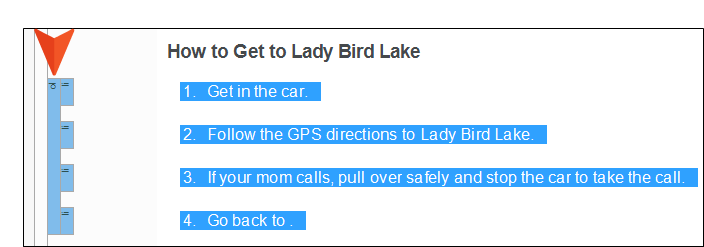
Select (i.e., left-click) the ol structure bar for the list.
The entire list should be highlighted.
-
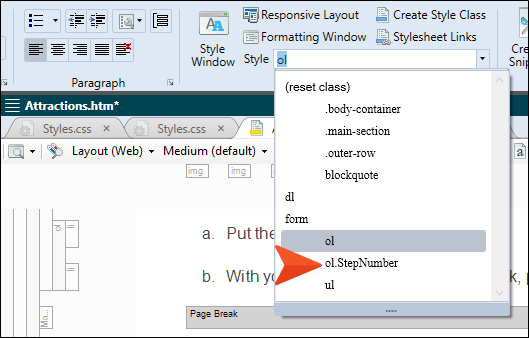
From the Home ribbon, click the Style drop-down and select ol.StepNumber.
-
Initially the numbering might not be seen in the XML Editor, so press F5 to refresh.
The list should now look like this.
- Click to save your work.
How to Insert a Cross-Reference to a Step
-
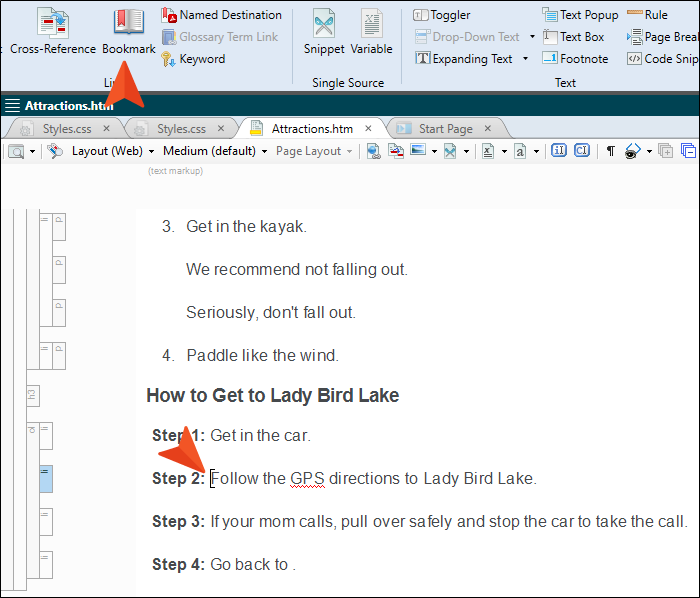
Click before the word Follow in step 2. Then, from the Insert ribbon, select Bookmark.
-
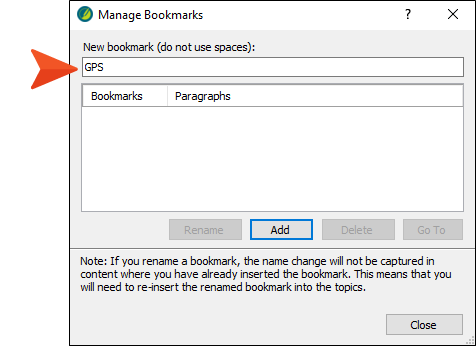
Type GPS as the name of the new bookmark and click Add.
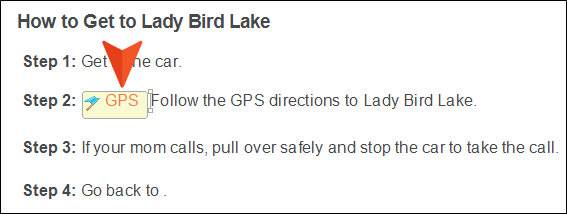
A marker is shown in step 2 (if you have markers turned on). Markers do not display in the output.
-
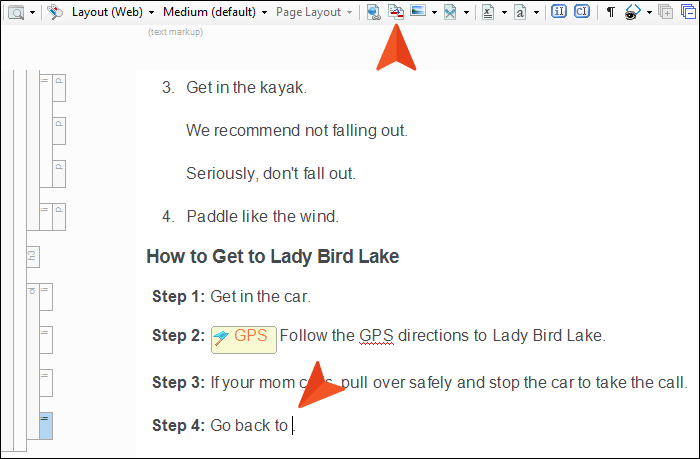
In step 4, click right before the period at the end of the sentence, then in the toolbar click
 .
.
-
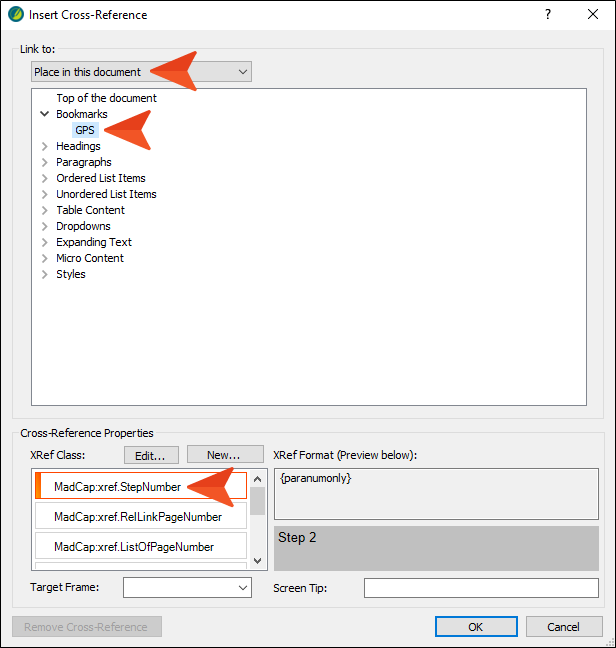
In the dialog select Place in this document. Under Bookmarks, select GPS. And at the bottom of the dialog, select MadCap:xref.StepNumber.
-
Click OK.
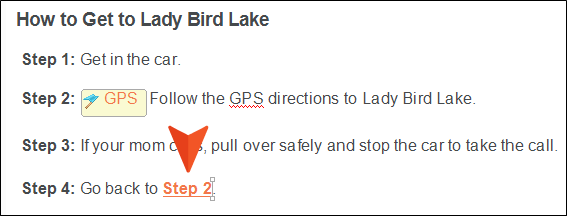
The autonumber for step 2 is automatically used as the link.
- At the end of step 1 press ENTER to create a new list item, and type Buckle your seatbelt.
-
Press F5 to refresh the editor.
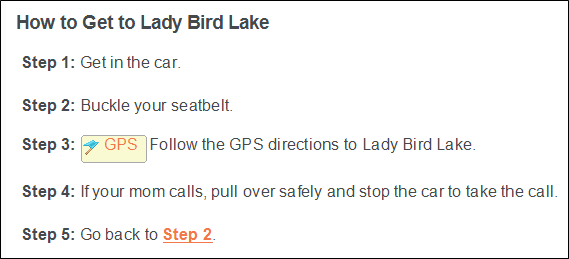
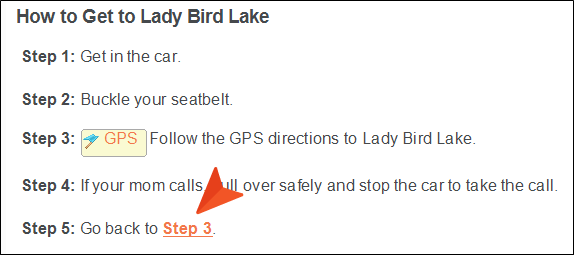
It should look like this now. Notice that the link still says "Step 2," even though the GPS information is now on step 3.
-
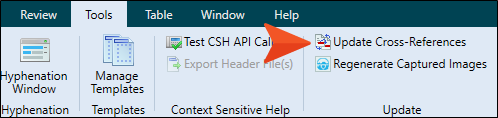
From the Tools ribbon select Update Cross-References.
-
In the dialog, click Update. Notice the link now shows "Step 3."
Note It's not mandatory that you refresh the XML Editor or update the cross-references. Doing that is only for you to make sure the content is correct. If you fail to do this, the output will still be correct.
- Click to save your work.

