 SINGLE-SOURCING TUTORIAL
You have probably heard a lot about single-sourcing, but maybe you are not sure how to get started with it in Flare Desktop. In this tutorial, we’ll cover the basics and introduce some key features that prove to be essential for building and maintaining effective content.
Single-sourcing is a way to manage content that provides a lot of flexibility in how you put together a project and create output. A concept that allows for this is “chunking content.” Instead of having all your content in one long document, the content exists as smaller, modular pieces to make up the whole. Each chunk of content can be reused throughout the project.
Okay, let’s see how this works in Flare Desktop…
[Menu Proxy — Headings — Online — Depth3 ]
How to Make Content Topic-Based
-
With your new project open in Flare Desktop, look at the Content Explorer. You’ll notice there are some topic files about Austin already in this project.
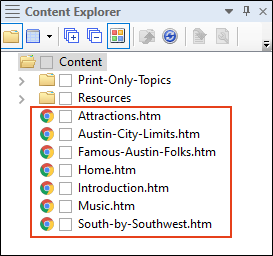
Note By default, these files are not arranged like they might be in a book from beginning to end. The topics are in alphabetical order, and other files such as images or styles are stored in supporting folders. You can organize files in the Content Explorer any way you want, but organization for output happens in a table of contents (TOC).
- Let's create a new topic to get a feel for what constitutes a topic. From the Content Explorer, right-click the root Content folder, and from the context menu, select New > Topic.
-
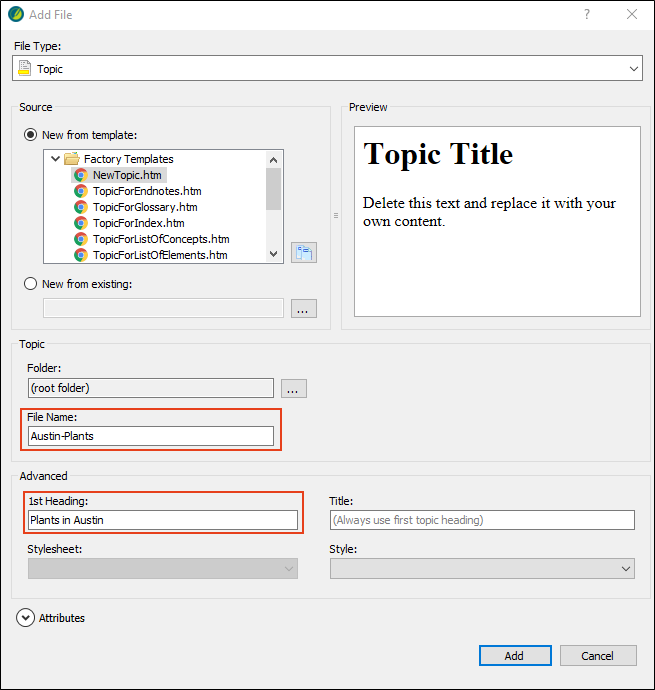
In the Add File dialog, in the File Name field, type Austin-Plants. In the 1st Heading field, type Plants in Austin. Click Add.
-
Flare Desktop's XML Editor automatically opens the new Austin-Plants.htm topic. In the first paragraph, copy and paste the following text at that location to replace the default text. (Depending on how you copy and paste the text, you might see an extra paragraph tag at the end. Just delete it.)
Many plants thrive in Austin’s humid subtropical climate that consists of mild winters and long hot summers. Trees, shrubs, perennials, succulents, and vines are just a handful of plant types to choose from to work into any home garden or landscaping design. For inspiration on what to plant, be sure to visit the Zilker Botanical Garden.
Trees
The most popular trees in Austin are drought-resistant and provide shade from the hot sun.
When planting, consider grouping drought-tolerant plants together in sunny locations, and grouping plants that need more moisture and shade in protected areas. Austin receives approximately 34 inches of rain per year.
Vines
Vines are great because they grow vertically along walls, trellises, and fences. Climbers also provide privacy screening and color to brighten up an otherwise bare wall.
Garden Tools
Bringing a great outdoor space with lots of plants to life and maintaining it is easier with the right equipment, especially in Central Texas where the soils can be challenging. The following common garden tools can help you carry out just about any task in the yard: shovel, trowel, pruning shears, loppers, hoe, rake, spading fork, garden hose, wheelbarrow, and garden gloves. Lastly, don't forget to wear a wide-brimmed hat under that hot Austin sun.
-
Look at the pasted text. There are two sections, “Trees” and “Vines,” that can be identified as types of plants and belong under the “Plants in Austin” heading. The other section, “Garden Tools,” is related but does not fit. It would be better as a separate topic (or chunk of content).
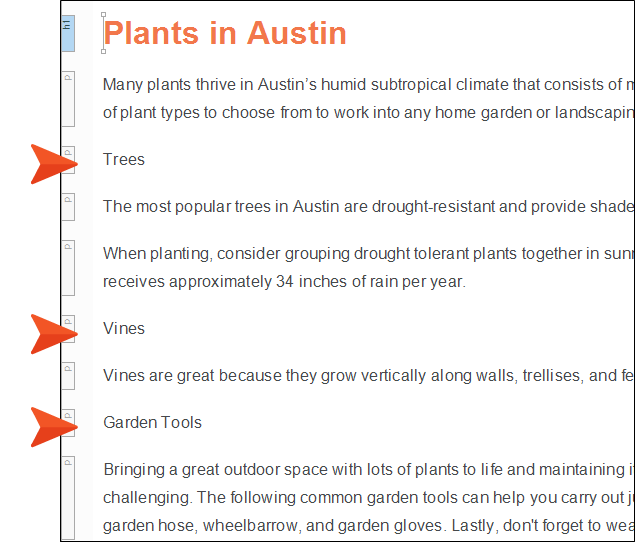
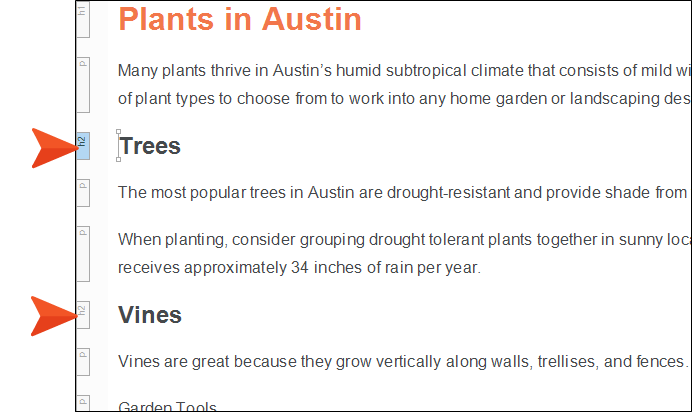
- Place the cursor anywhere in the “Trees” paragraph, and from the Home ribbon, click the Style drop-down and select h2.
-
Place the cursor anywhere in the “Vines” paragraph, and from the Home ribbon, click the Style drop-down and select h2.
- Let's create a new topic for the Garden Tools subject. From the Content Explorer, right-click the Content folder, and from the context menu select New > Topic.
- In the Add File dialog, in the File Name field, type Garden-Tools. In the 1st Heading field, type Garden Tools. Click Add.
-
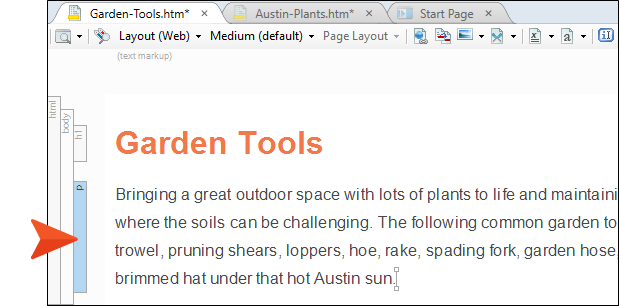
From the Austin-Plants.htm topic, cut the last paragraph describing Garden Tools and paste it into the new Garden-Tools.htm topic in the first paragraph under the heading (replacing the default text).
-
Go back to the Austin-Plants.htm topic and delete the heading for the Garden Tools text.
You have created two new topics for the Austin project. The subject matter is related, but the topics now stand alone containing smaller chunks of information. This is topic-based authoring, which sets the stage for reusing content and single-sourcing features.
-
Click
 to save all files.
Home Topic Update
Before we move on, let’s add a mention of the main new planting topic to the Welcome heading of the project.
- From the Content Explorer, double-click the Home.htm topic to open it in the XML Editor.
-
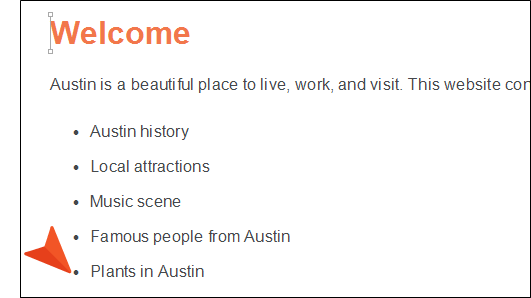
Under "Famous people from Austin," create a new bulleted item and type Plants in Austin.
-
Click
 to save your work.

