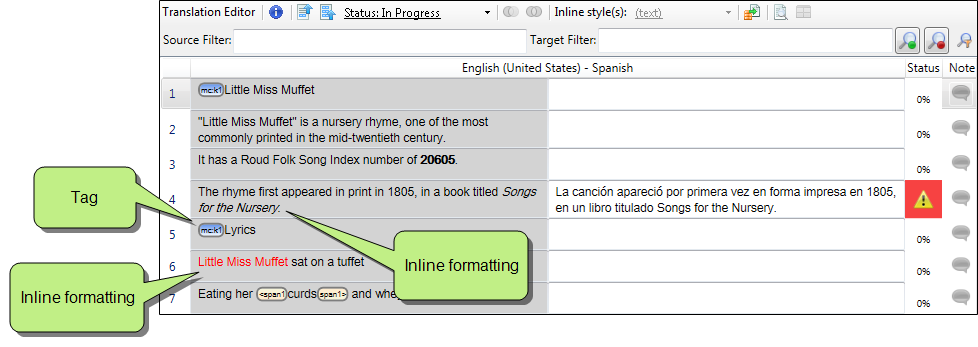
Lingo lets you control formatting and other elements in segments so that the translation matches the source in terms of more than just text. This is done through inline formatting styles and tags.
 inline formatting
If the source document contains inline formatting that Lingo is able to read (e.g., bold, italic, underlined text), that formatting is displayed in the source cell in the Translation Editor. You need to apply the same formatting to the appropriate text in the target cell.
You can apply inline formatting to the target segment in the following ways:
Inline Style(s) Field You can highlight the applicable text in the target segment. Then in the local toolbar, click the Inline style(s) field and select the available formatting. This field displays only the formatting found in the source cell.
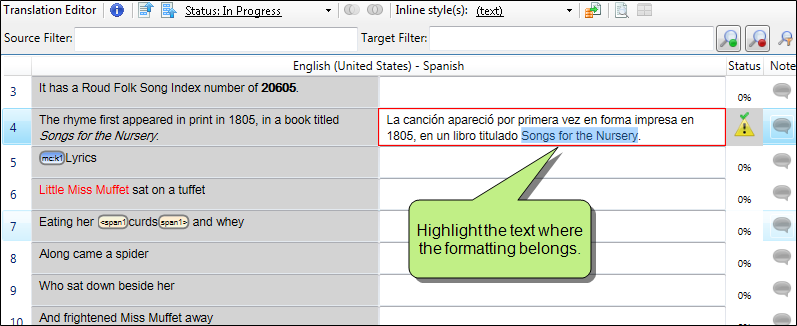
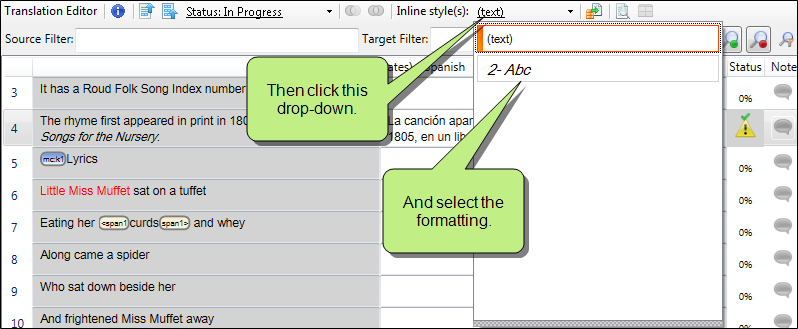
Keyboard Shortcuts For much inline formatting (e.g., bold, italic, underline, superscript, subscript and any combination of these), you can use Microsoft Word shortcuts (e.g., CTRL+I for italic, CTRL+B for bold). For font size, color, or background color, you must use the Inline style(s) field as described above.
In addition, you can use a keyboard shortcut to access the Inline style(s) field. After highlighting the applicable text in the target segment, you can press CTRL+W to open the Inline style(s) field. You can then use your keyboard to select the formatting.
tags
Tags are shown for elements and formatting that Lingo is not able to read. For example, you might see miscellaneous tags when you import a Word document. Also, Flare project elements such as bookmarks, variables, or index keywords are represented by tags. It is not important that you know the purpose of each tag. As the translator, your job is to make sure the same tags in the source segment are added to the target segment and placed next to the appropriate words.
You can add tags in the following ways:
error and warning icons
If the source segment contains formatting or tags, you might see an error or warning icon in the Status column.
|
|
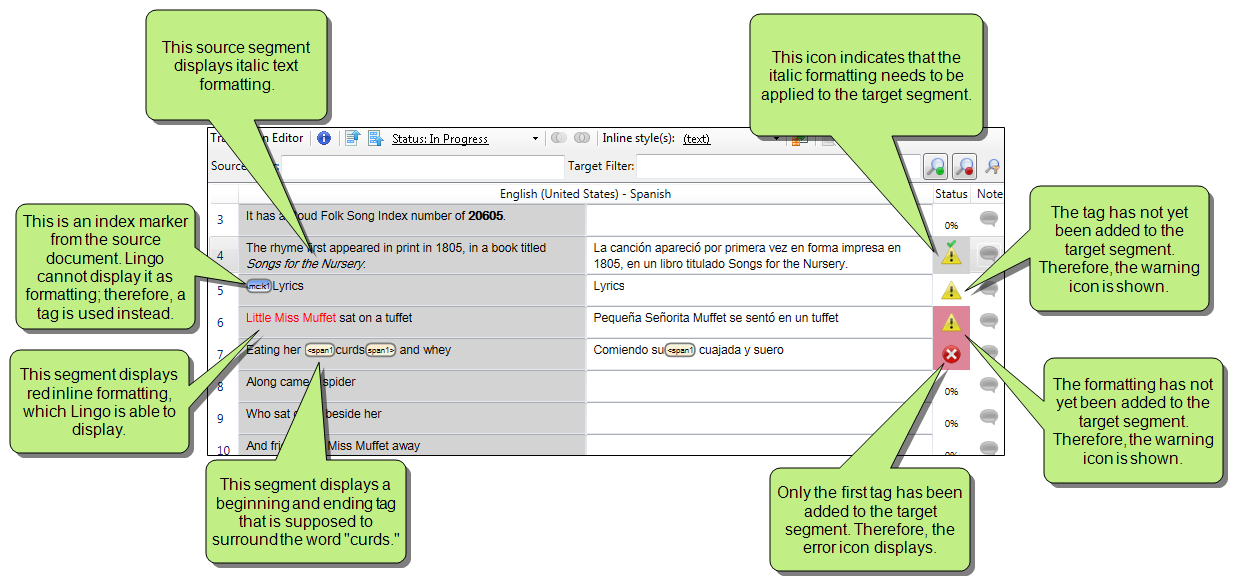
This warning icon means that the source segment contains formatting or tags, but that you have not yet added them to the target segment. If you see this icon, you can still save, export, or preview the file (when applicable). In addition, you can confirm the translated segment as completed. |
|
|
This error icon means that you have incomplete tags in the target segment. In other words, some tags require a beginning and ending tag, and if you have only one of those, Lingo identifies it as invalid and gives you the error. If you see this icon, you cannot save, export, or preview the file (when applicable). |
example
The following example shows segments with inline formatting and a tag, as well as the error icon:
notes
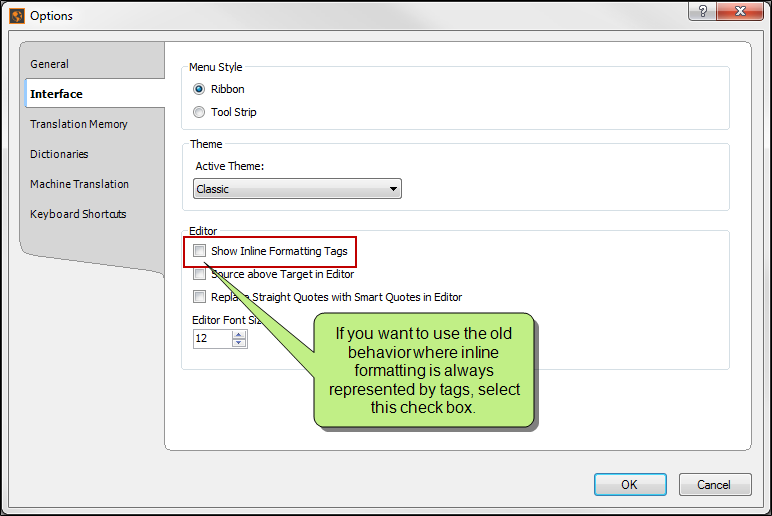
Note: If you want all formatting to be displayed as tags in the Translation Editor and Translation Memory Editor (as in previous versions), you can select a check box in the Options dialog. You may need to close and re-open files in the project to see the change.
Note: If you are not sure what a tag means, you can click the toggle button  in the local toolbar of the editor to switch to Preview mode to see the content in its intended context.
Note: When you import and export Translation Memory eXchange (TMX) files, the formatting and tag data are included. See Importing TMX Files and Exporting TMX Files.


